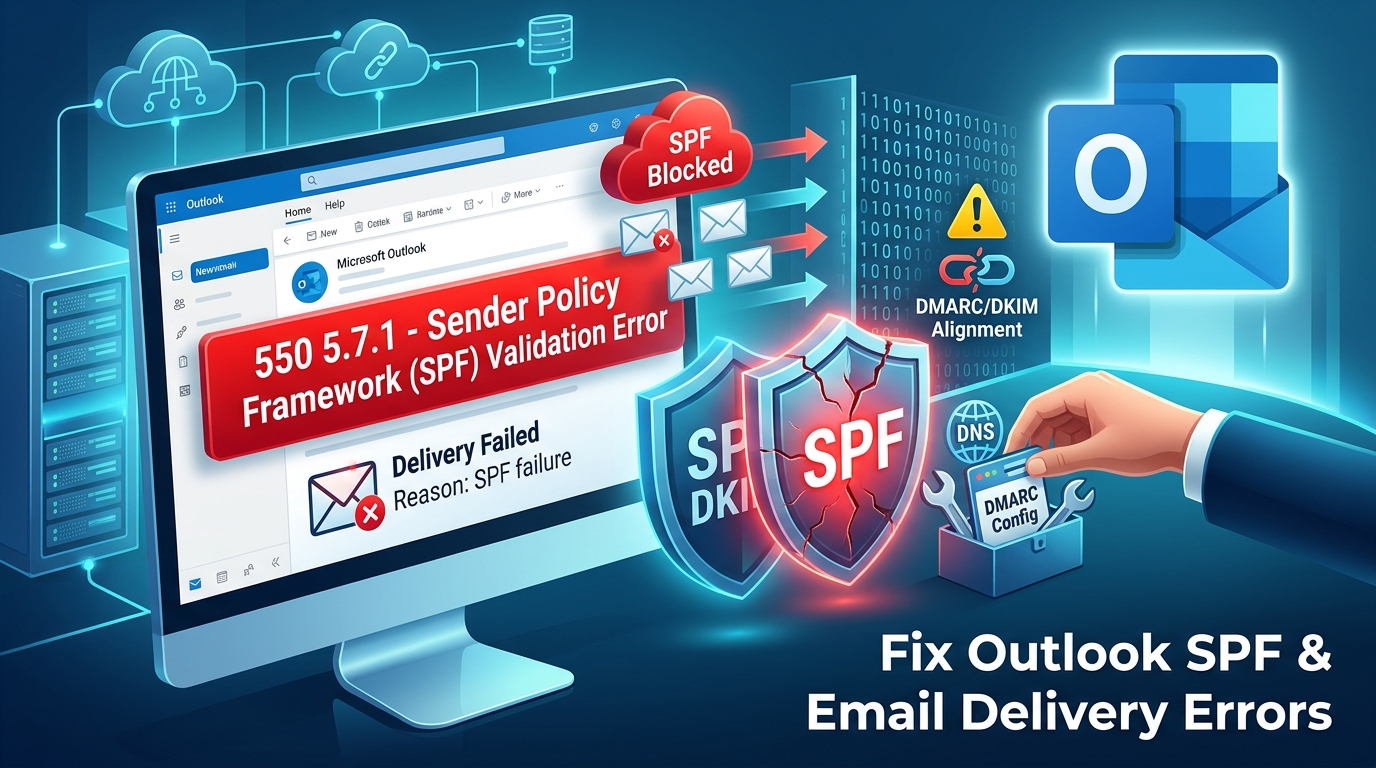
Microsoft Outlook Users Hit by Sudden SPF Validation Errors and Email Bounces
If you or your organization use Microsoft Outlook or Exchange-based mail servers, you may have recently run into unexpected brick walls when trying to send or receive emails. A wave of delivery failures—often tied to Sender Policy Framework (SPF) errors—has left many administrators and everyday users searching for answers.
In this post, we’ll look at what is causing these sudden email blocks, what the error codes mean, and how you can troubleshoot or fix them.
Understanding the Problem: What’s Going Wrong?
Many users and system administrators have reported that routine emails are bouncing back with non-delivery reports (NDRs). The most commonly cited error codes include:
550 5.7.1: Indicating a message rejection due to security policies or missing authentication records.550 5.7.23: Pointing directly to an SPF validation failure where the receiving system could not confirm the sender’s source location.
What has frustrated many affected parties is that these errors sometimes pop up even for domains that appear to have their DNS, SPF, DKIM, and DMARC records fully configured. While some community discussions point toward stricter authentication enforcement and handling changes on Microsoft’s backend, others highlight configuration edge cases that surface during strict validations.
How to Check and Fix Your Domain Authentication
If your emails are being rejected by Microsoft’s servers, the issue usually boils down to how your domain’s DNS or email routing is structured. Here are the core areas to review:
1. Audit Your SPF Records
- Check for Duplicates: Your domain should only have one active SPF TXT record. Having multiple records causes a permanent error (
permerror). - Watch the Lookup Limit: SPF records can execute a maximum of 10 DNS lookups. If you use multiple third-party tools (like marketing platforms, CRMs, or helpdesks), you might be exceeding this limit.
2. Implement or Review DMARC and DKIM
Many administrators have noted that a missing DMARC record can exacerbate validation problems.
- Ensure your domain has a baseline DMARC policy set up (even a monitoring policy like
p=nonecan help stabilize reporting and alignment). - Verify that DKIM is properly configured and signing your outgoing messages so that DMARC alignment passes successfully.
3. Account for Email Forwarding and Relaying
If your emails are routed through third-party email gateways or forwarded, SPF checks can naturally break because the forwarding server isn’t listed in your original domain’s SPF policy. Utilizing authenticated received chain (ARC) sealers or proper connector configurations usually resolves this.
Next Steps for Affected Senders
If you have verified that your DNS records, SPF limits, and DKIM/DMARC configurations are completely accurate, but your messages to Outlook.com, Hotmail, or Microsoft 365 addresses continue to bounce:
- Save the Complete NDR: Keep a copy of the non-delivery report, making sure to note the full “Diagnostic information for administrators” section.
- Submit a Support Ticket / Sender Request: If you are sending from a custom domain and facing persistent blocks despite correct configurations, use the official Outlook.com Sender Support request form or open a support ticket through your Microsoft 365 Admin Center to escalate the routing issue.
Have you experienced these email delivery hiccups over the past few days? Let us know in the comments below how you managed to resolve them for your domain!